Alarm
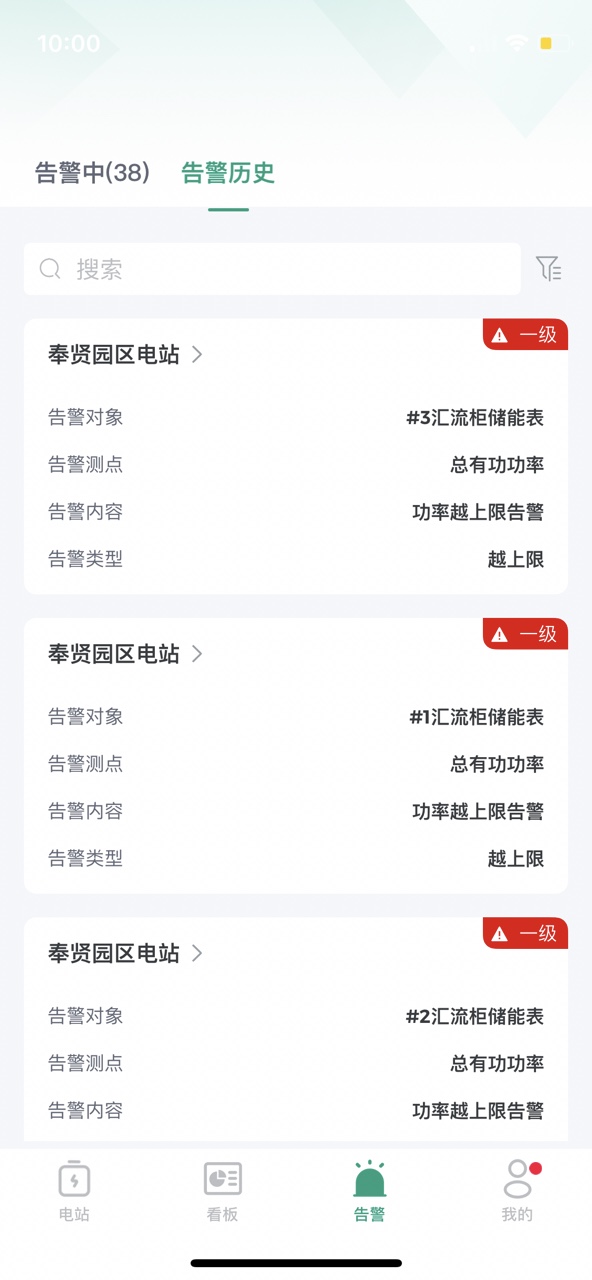
Click "Alarm" in the bottom menu bar to switch to the alarm page.
The alarm section is divided into: Active Alarms and Alarm History. The default display is Active Alarms. Click to switch to Alarm History.

Active Alarms
Operations:
Search Bar: Enter the alarm content to search for active alarm information.
Filter: Click the
 icon on the right side of the search bar to find specific active alarm information through filter conditions, including station/device type/alarm level filtering.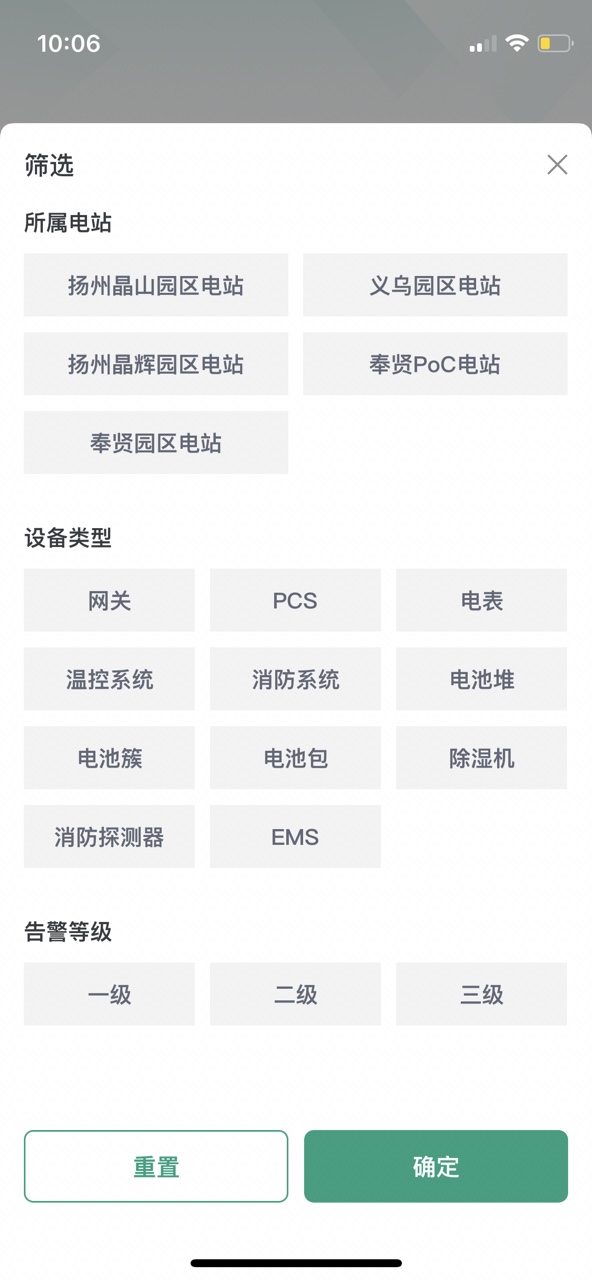
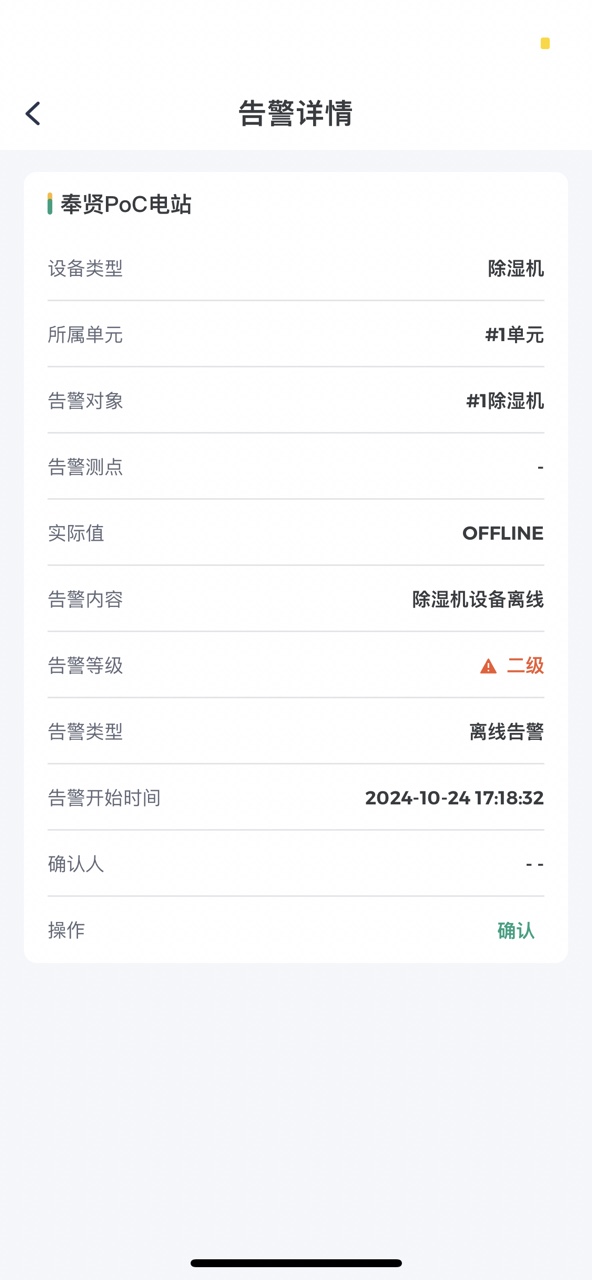
Click the alarm information on the list to view the details of the active alarm. (If the user has alarm confirmation permission, they can click the confirm button to perform the alarm confirmation operation)
Alarm History
Operations:
Search Bar: Enter the alarm content to search for alarm history information.
Filter: Click the
icon on the right side of the search bar to find specific alarm history information through filter conditions, including station/device type/alarm level/alarm status/start and end time/duration filtering.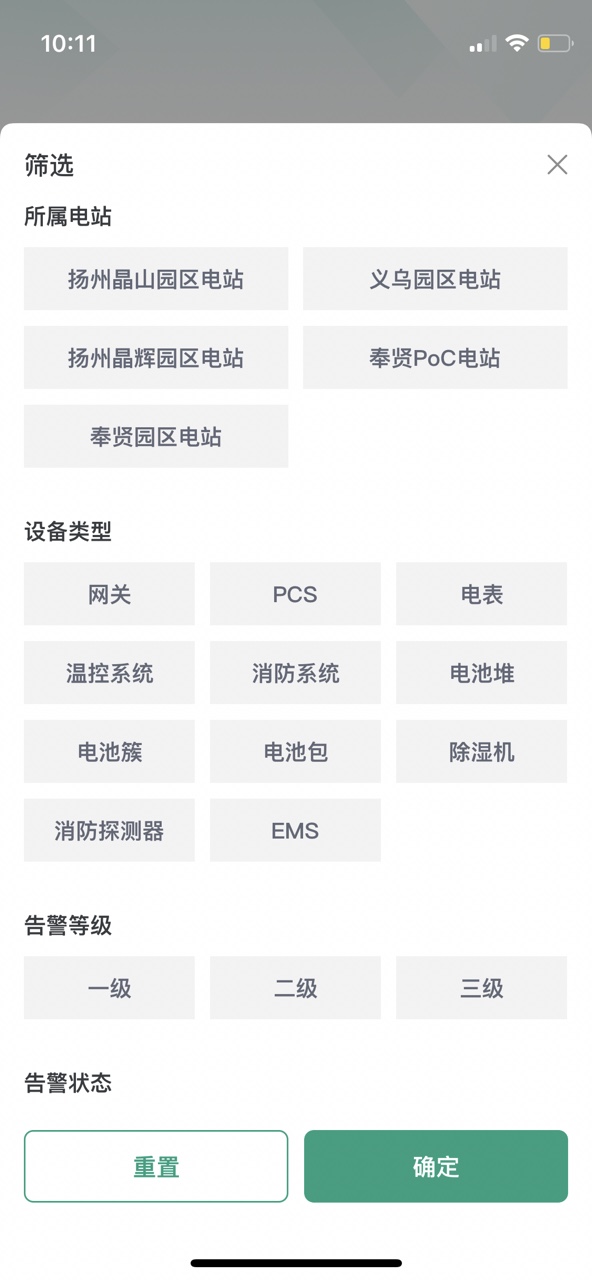
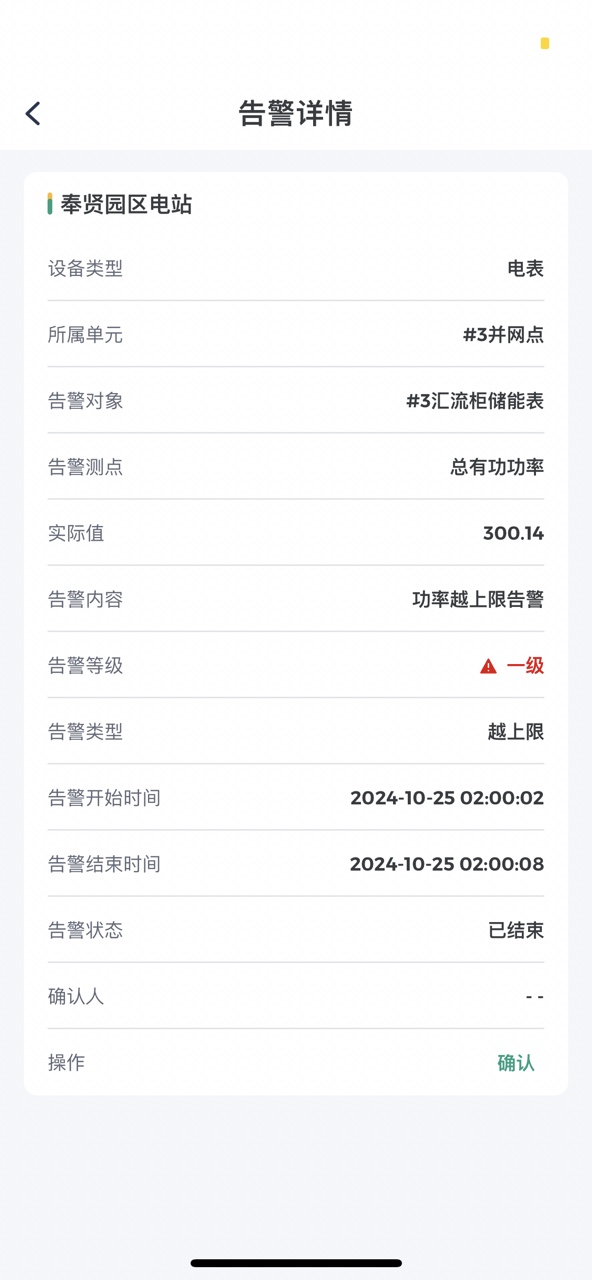
Click the alarm information on the list to view the details of the alarm history. (If the user has alarm confirmation permission, they can click the confirm button to perform the alarm confirmation operation)