How to configure strategy
- Prerequisites:
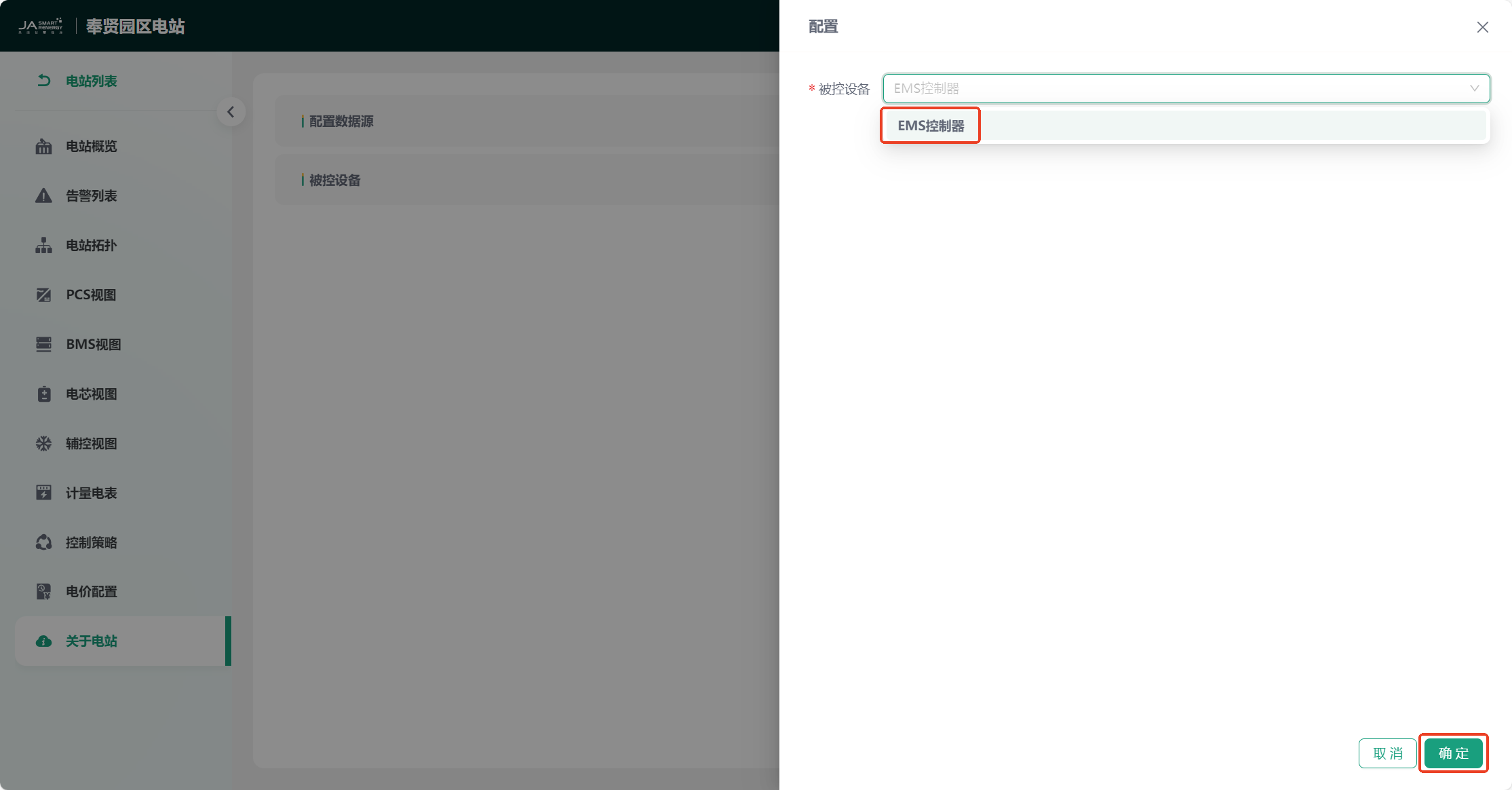
The dispatch of the strategy requires the configuration of the controlled device first, otherwise the strategy cannot be dispatched to the corresponding device on the edge.
- Configuration Steps:
Enter the station - "About Station" page, click the "Controlled Device" - "Configure" button, the "Configure Controlled Device" side window pops up. Select the device you need to dispatch the strategy to and click the "Confirm" button to save.
Add Strategy
- Enter the station "Control Strategy" - "Strategy Configuration" page.
- Click the "Add Strategy" button, and the "Add Strategy" side window pops up.
- You can select the strategy type and corresponding parameters to be configured according to your needs, including three strategy types: Peak Shaving and Valley Filling, Demand Control, and Anti-backflow.
- After configuration, click the "Confirm" button to save.
Strategy Binding
- Enter the station "Control Strategy" - "Scheduling Calendar" page.
- Click the "Add Schedule" button, and the "Add Schedule" side window pops up.
- You can select strategies of different strategy types for binding according to your needs (Note: only one strategy can be bound for each strategy type), and select the strategy application time period.
- After selection, click the "Confirm" button to save the binding.
Strategy Dispatch
- After completing the strategy binding, click the "Dispatch" button directly.
- The page pops up a password/password verification box (if there is no password, you can click "No password, go to set" to set the password). You can choose any verification method for verification.
- After verification, click the "Dispatch" button again to perform the strategy dispatch operation.
- You can view the strategy dispatch status on the "Control Strategy" - "Dispatch Log" page.