Me
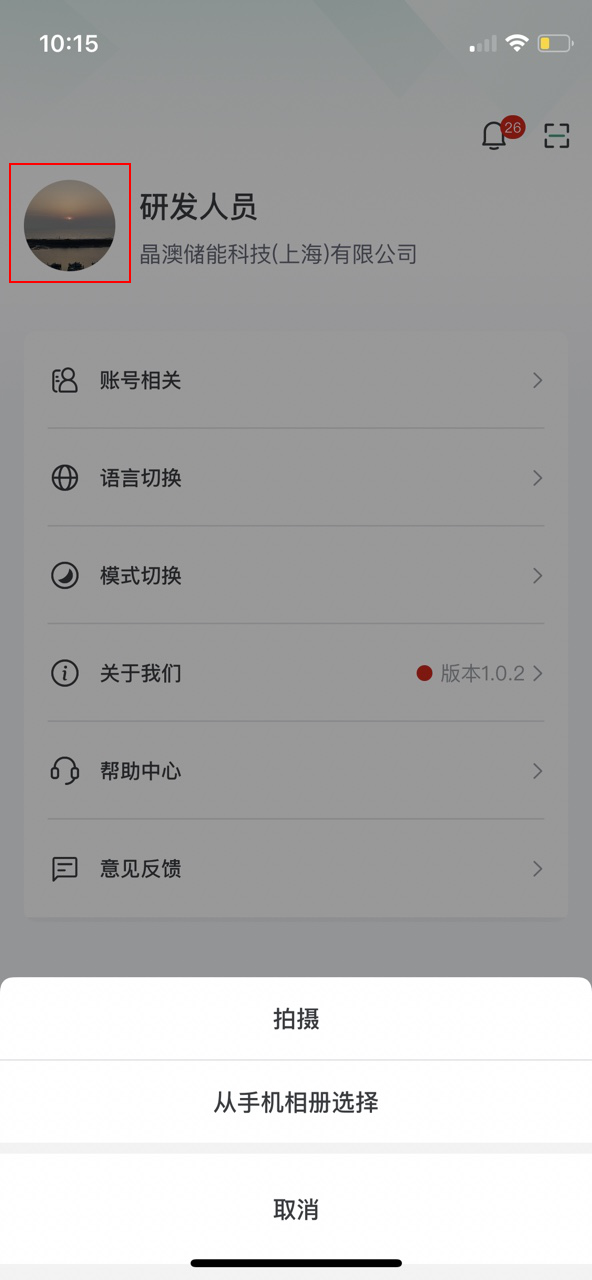
Click "Me" in the bottom menu bar to switch to the "Me" page.
Users can click the avatar to switch the account avatar.
Message Notification
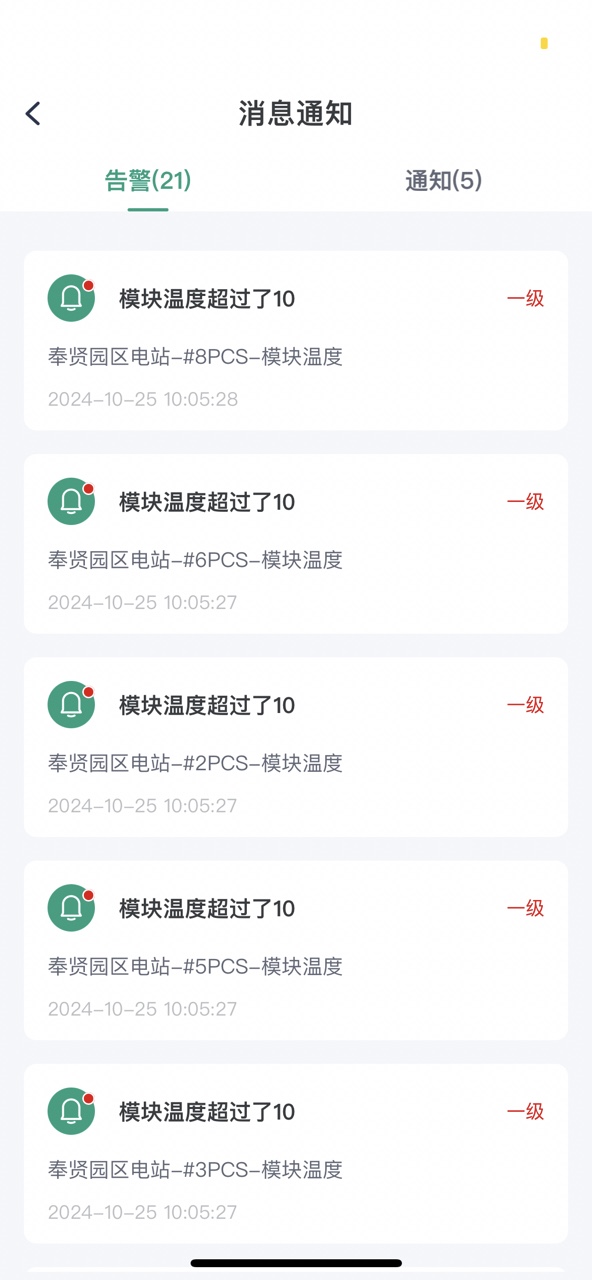
Message notifications include alarms and notifications. When there are message notifications, a message notification quantity prompt will appear on the bell icon in the upper right corner of the page. The quantity is the sum of alarms and unread notifications. Click the  icon in the upper right corner of the page to jump to the message notification page for viewing.
Alarm
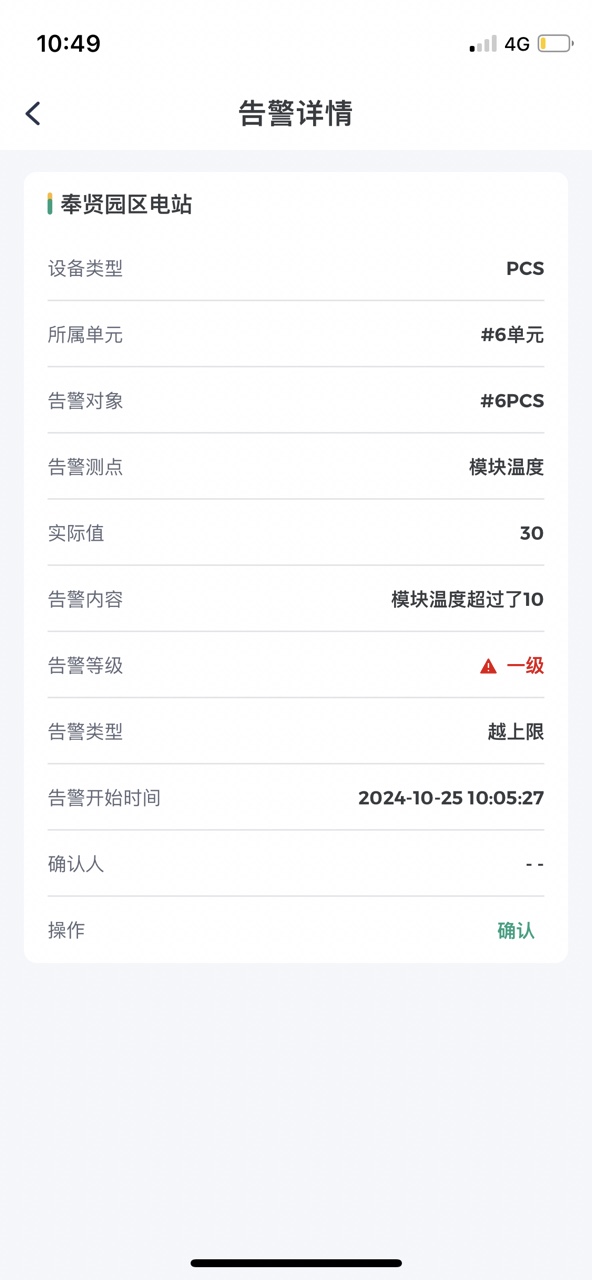
Users can click on a specific alarm to view alarm details.
Note: The number of alarms will only decrease after confirmation. If the user only views it, the number of alarms remains unchanged.
Notification
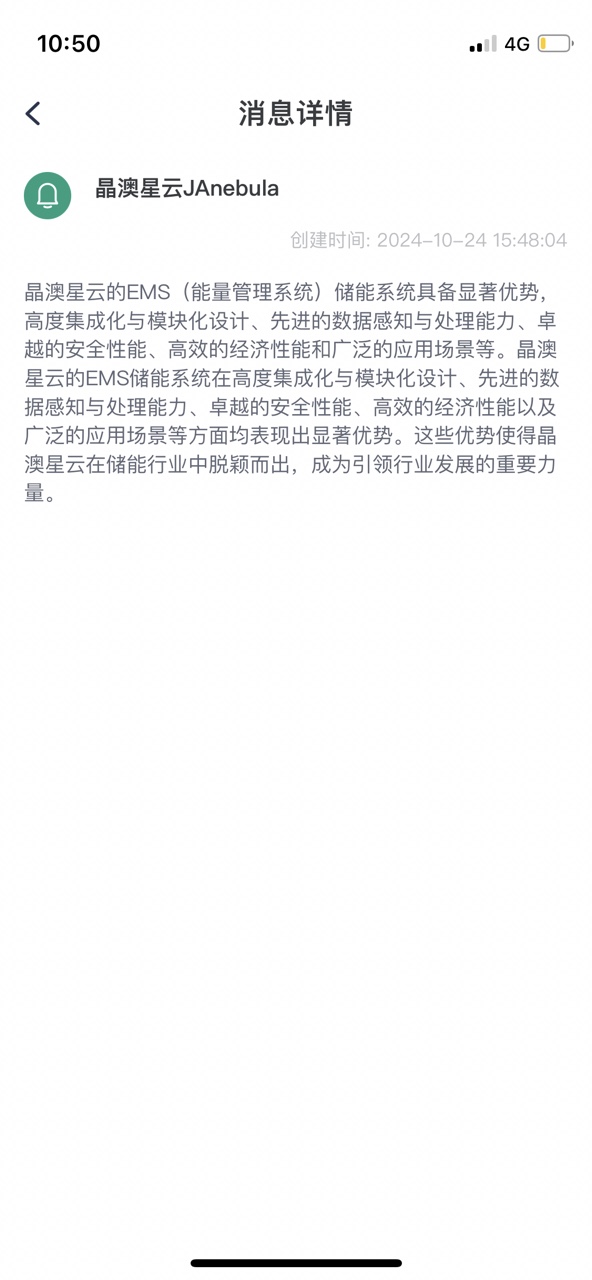
The notification page displays the full content of notifications. The number of notifications indicates the number of unread notifications. Users can click on a specific notification to view notification details.
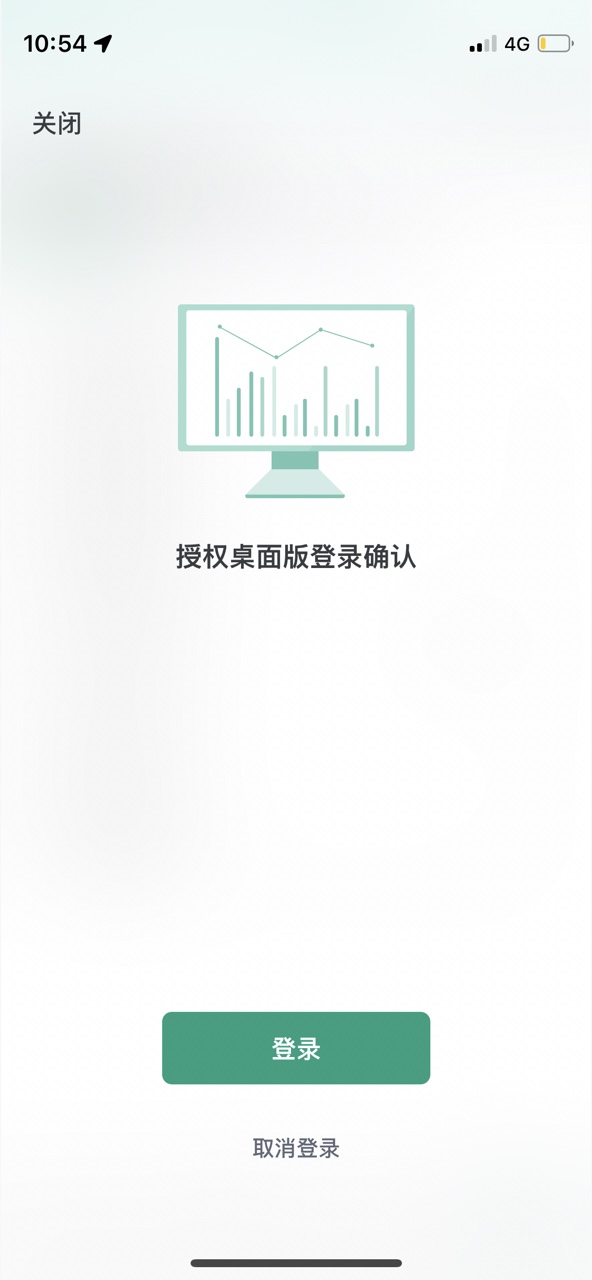
Scan
Click the  icon in the upper right corner of the page to open the [Scan] page. You can scan the QR code on the PC login page to perform the PC login operation.
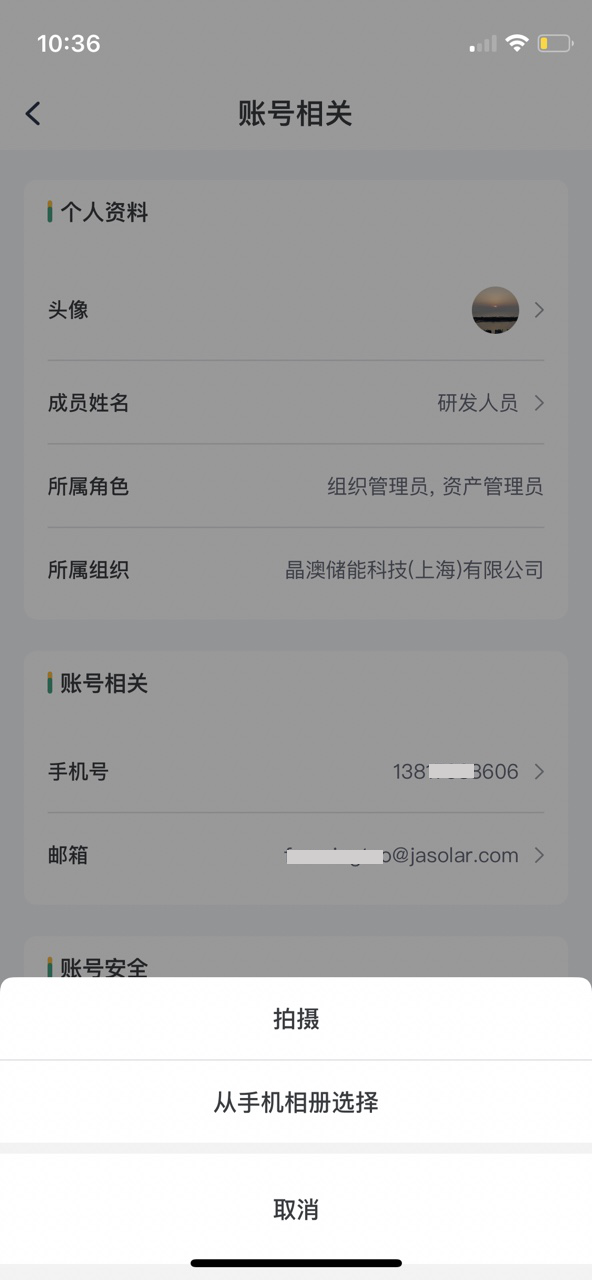
Account Related
Click "Account Related" to enter the account related page, which supports avatar/member name/mobile number/email/password modification, member role and organization viewing, logout, and other functions.
Avatar Switching
Displays the current avatar. Click the avatar to select a replacement. Replacement methods include taking a photo and obtaining from the local album.
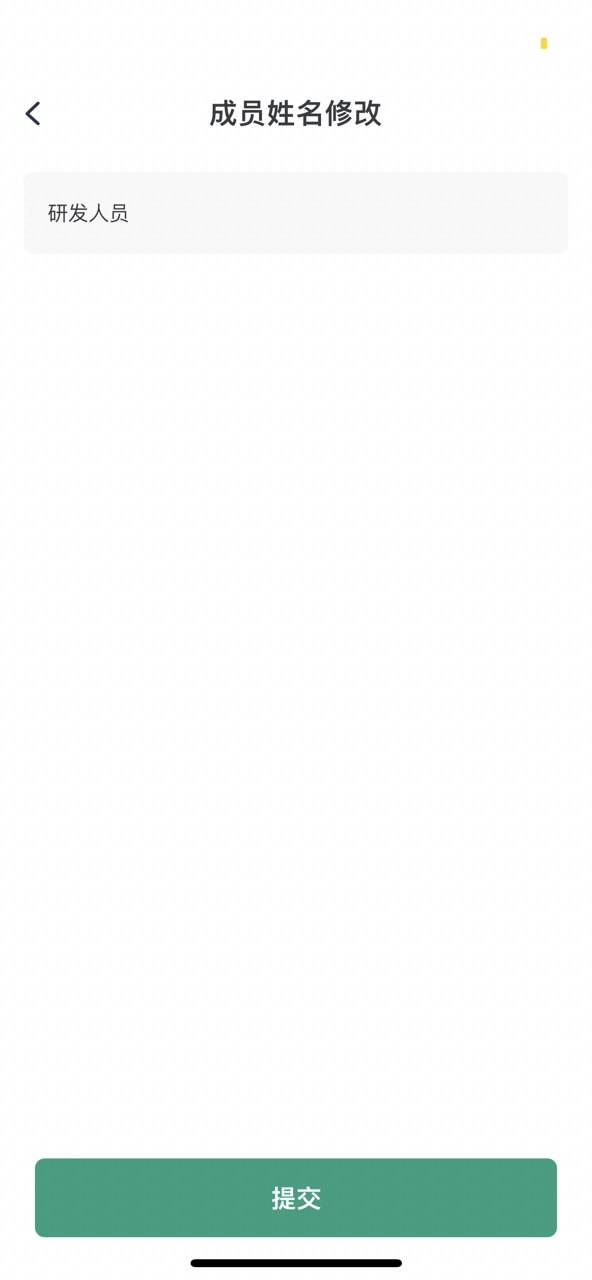
Member Name
Displays the current name. Click to jump to member name modification. After modification, click the submit button.
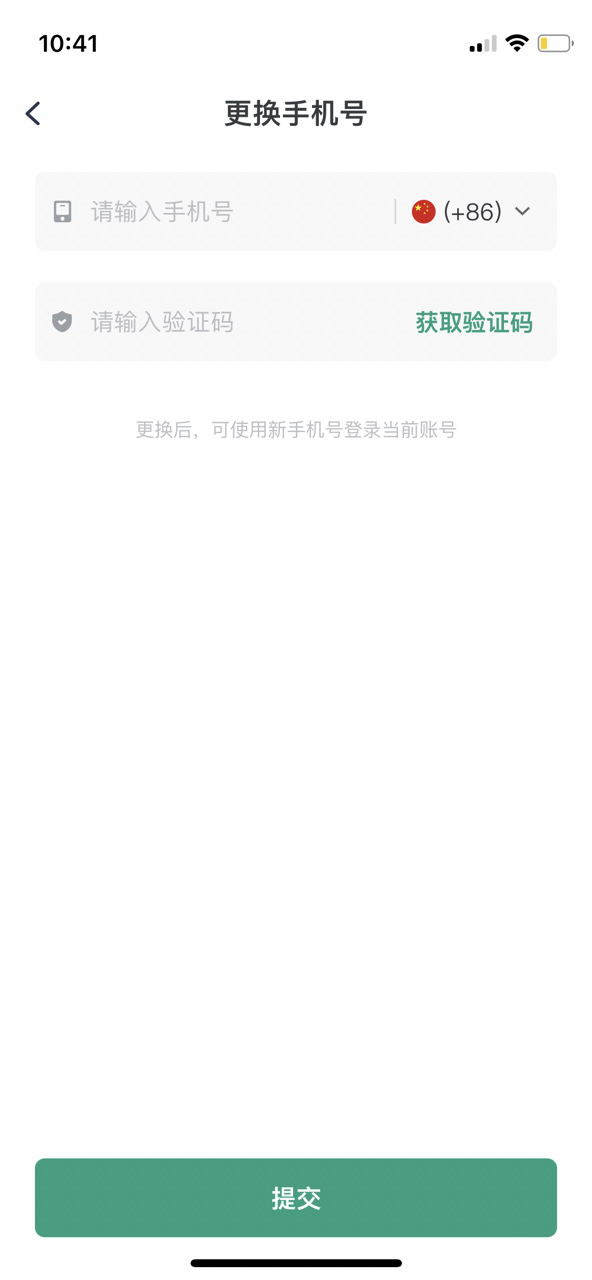
Mobile Number
Displays the currently bound mobile number. Click the mobile number to jump to the change mobile number page. Enter the correct mobile number and verification code. After the information is correct, click the submit button.
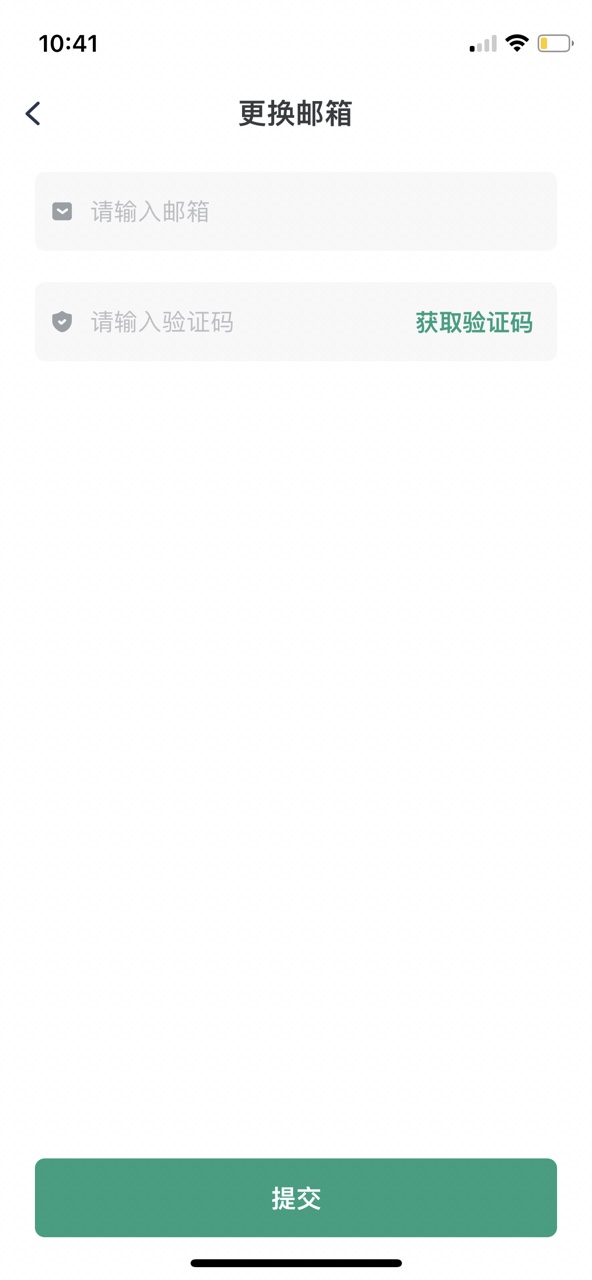
Email
Displays the currently bound email. Click the email to jump to the change email page. Enter the correct email and verification code. After the information is correct, click the submit button.
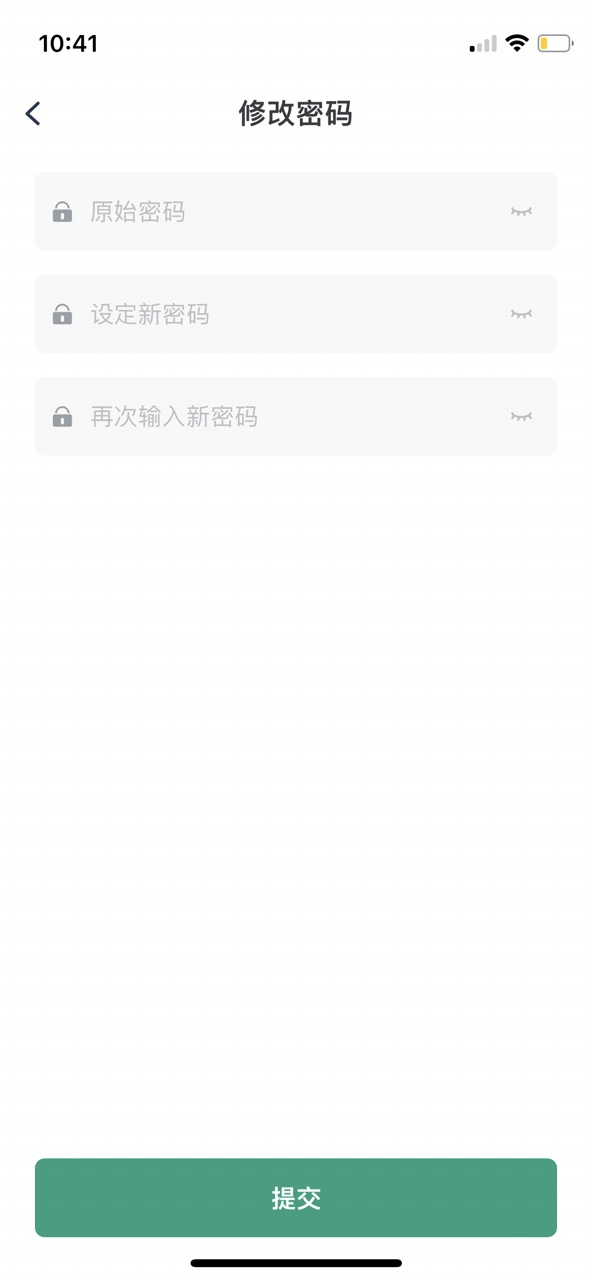
Change Password
Click "Change Password" to jump to the change password page. Enter the original password and set a new password. The new password must be entered twice consistently. After completion, click the submit button.
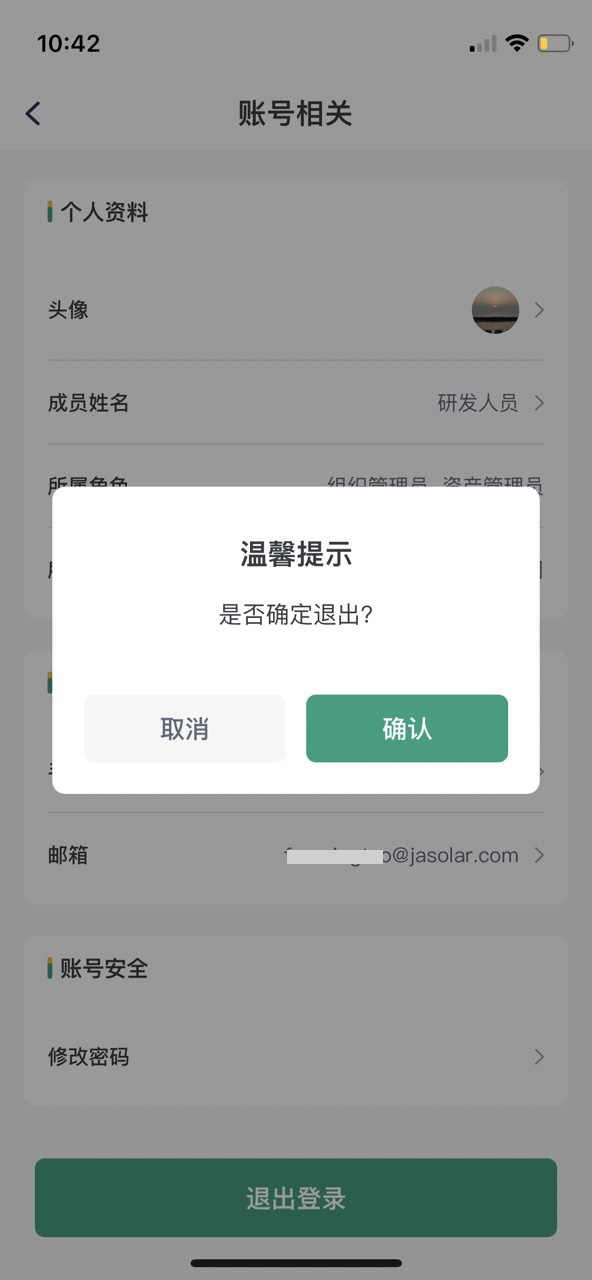
Logout
Click the "Logout" button, and a secondary confirmation pop-up window will appear. Click "Confirm" to log out successfully. Click "Cancel" to not log out of the current login account.
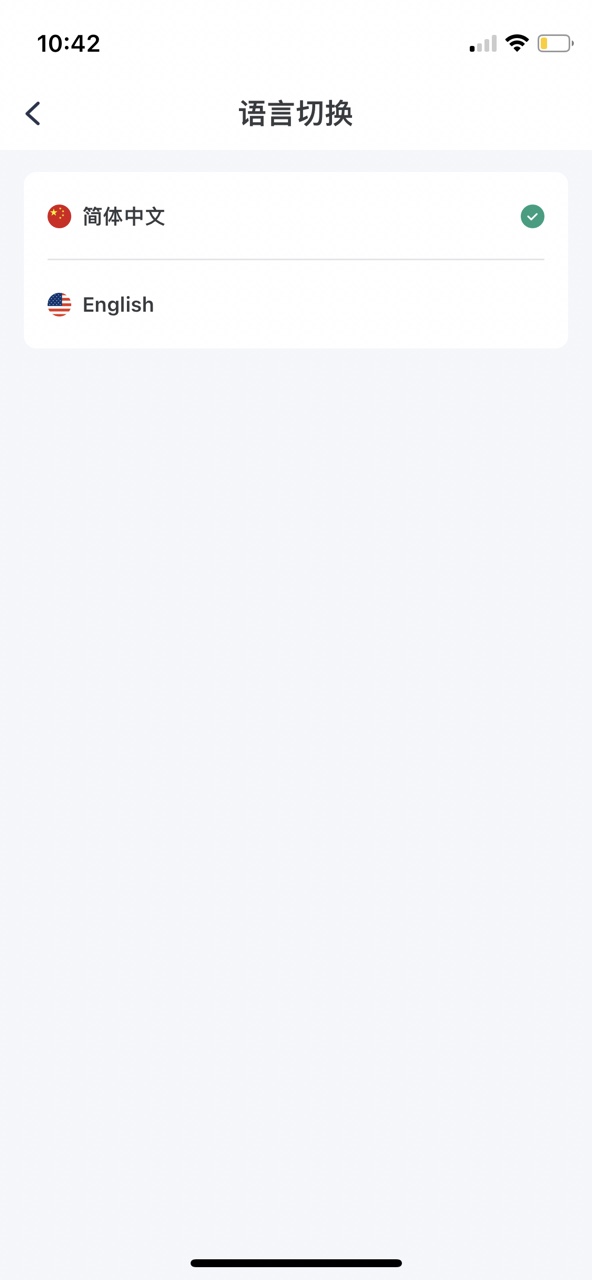
Language Switching
Click "Language Switching" on the "Me" page and select Chinese or English to switch the global language of the APP.
Mode Switching
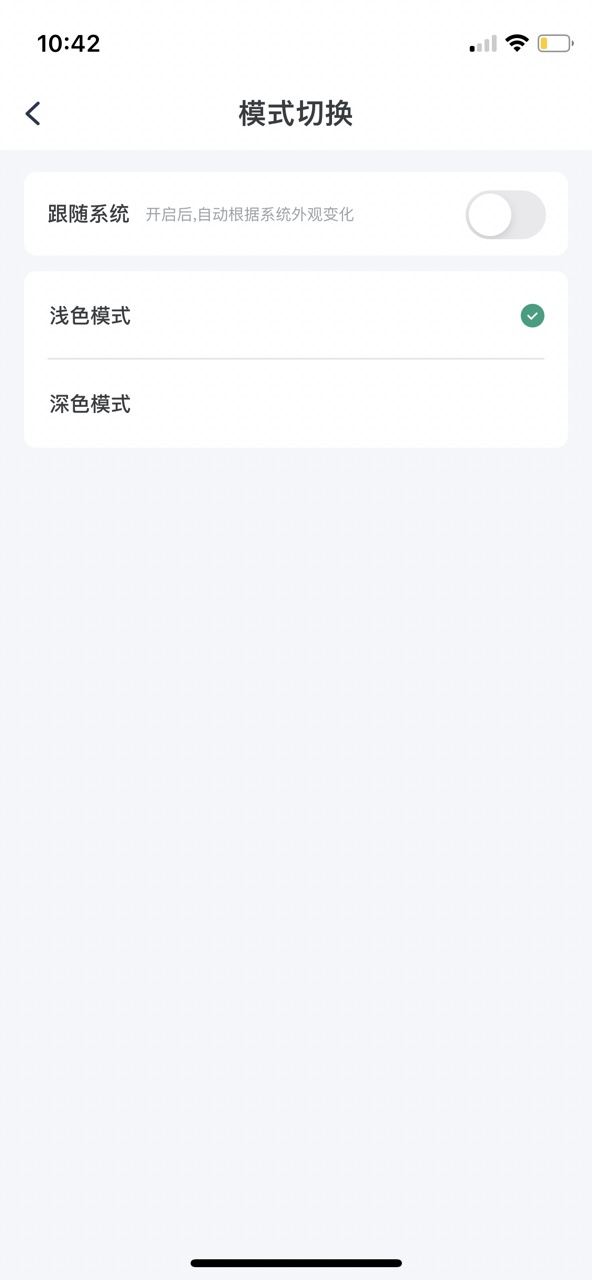
Click "Mode Switching" on the "Me" page to switch between system light and dark modes.
- Follow System Off: Switch between light and dark modes as needed.
- Follow System On: The APP automatically adapts according to the mobile phone system's light and dark mode.
About Us
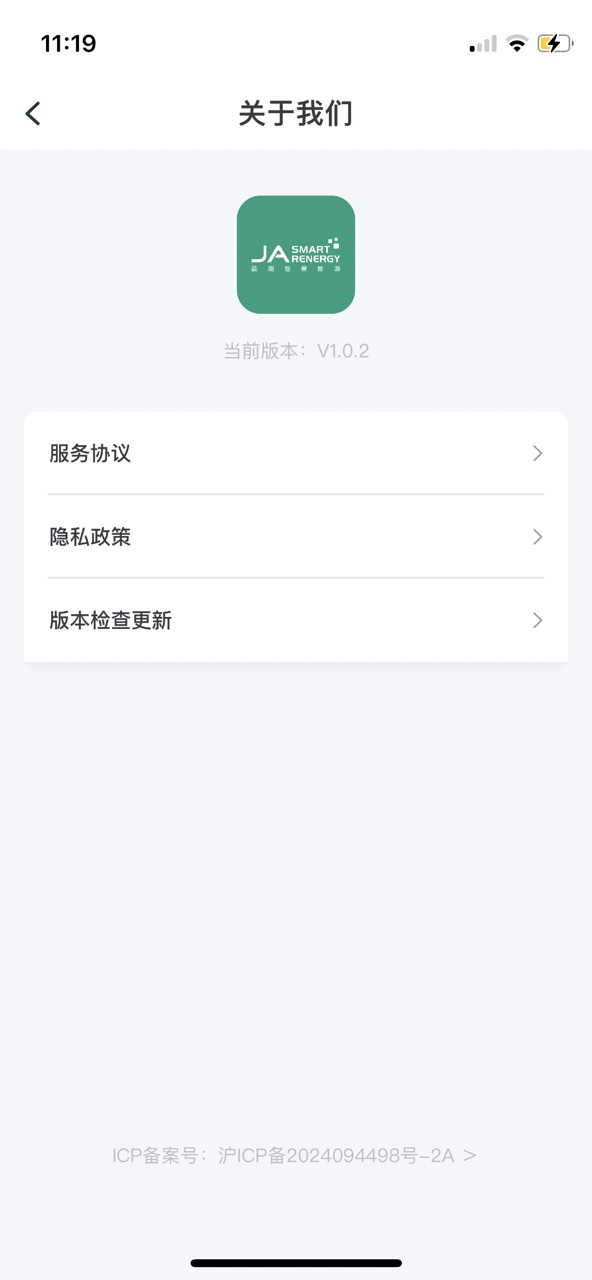
The "About Us" entrance displays the current APP version number. If there is a higher version, a red dot prompt will appear at the same time.
Click "About Us" to enter the details page, which includes version number display, filing number display (click to jump to view specific filing information), service agreement entrance, privacy policy entrance, and version check update.