Device Management
Devices
The "Devices" module summarizes and displays the added devices and manages them. It supports device addition, device information display, filtering by station/product/device name, device view/edit/delete/copy operations, and device list export/refresh functions, so that you can manage devices.
Add Device
You can add a device by clicking the "Station Selection" drop-down box to select the station where the device is to be added. For details, see Add Device.
Device Information Display
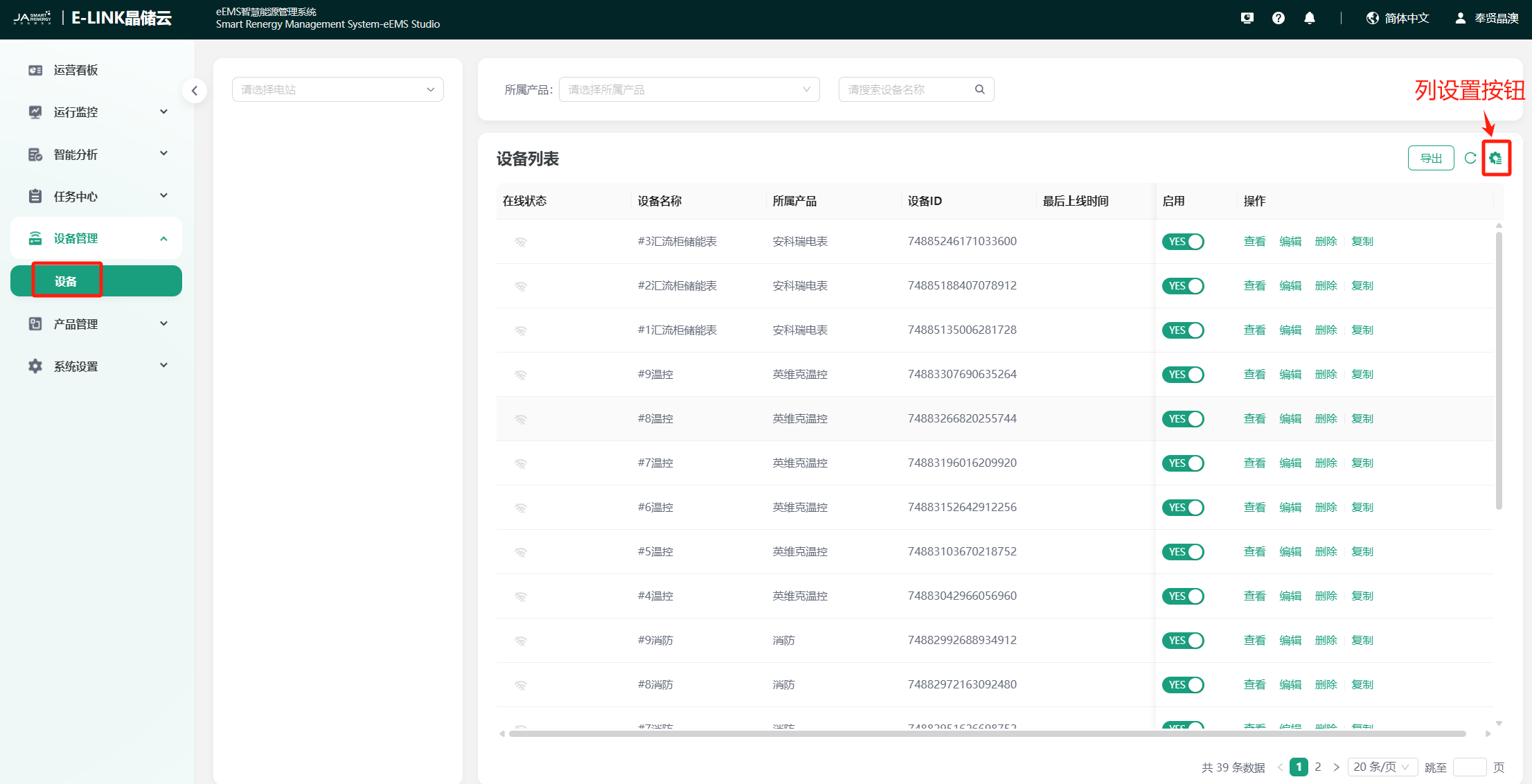
The device list displays the device's online/offline status, device name, product, device ID, last online time, device enable/disable switch, and operation functions for the device in detail. Devices under all stations are displayed by default. You can click the column setting button to customize the position, hiding, or display of each field in the device list, so that you can better manage devices, as shown below:
Device Filter
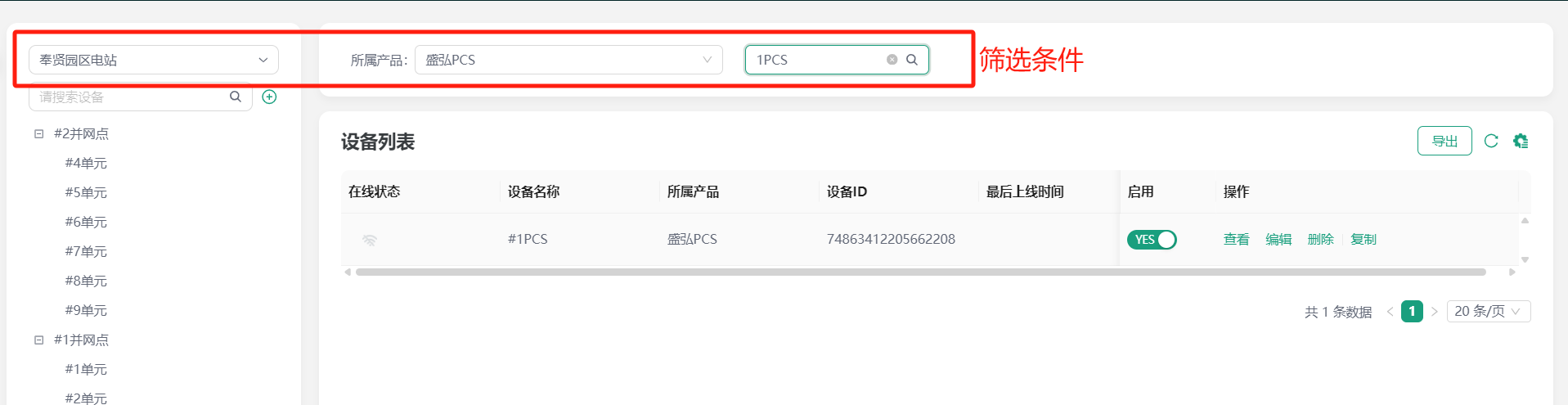
You can filter the device list by conditions such as station/product/device name, as shown below:
Device Operations
Device operations include view/edit/delete/copy/manage sub-devices (only gateway devices have this operation), etc.
Device View
Click the "View" button in the operation column to open the device details page to view the information and thing model data of a device.
Thing Model Data: Inherits the thing model configured by the product. You can perform device alarm configuration and other operations on this page so that you can better manage the device.
Device Edit
Click the "Edit" button in the operation column to open the device information editing window to re-edit the information of a device.
Device Delete
Click the "Delete" button in the operation column to delete a device.
Device Copy
Click the "Copy" button in the operation column to copy the corresponding device. A copy window pops up, and you can save the new device after re-editing.
Manage Sub-devices
Only gateway devices have this operation. Click to jump to the sub-device list page corresponding to the gateway device, where you can perform operations such as binding and deleting sub-devices.
Device List Export/Refresh
Device Export
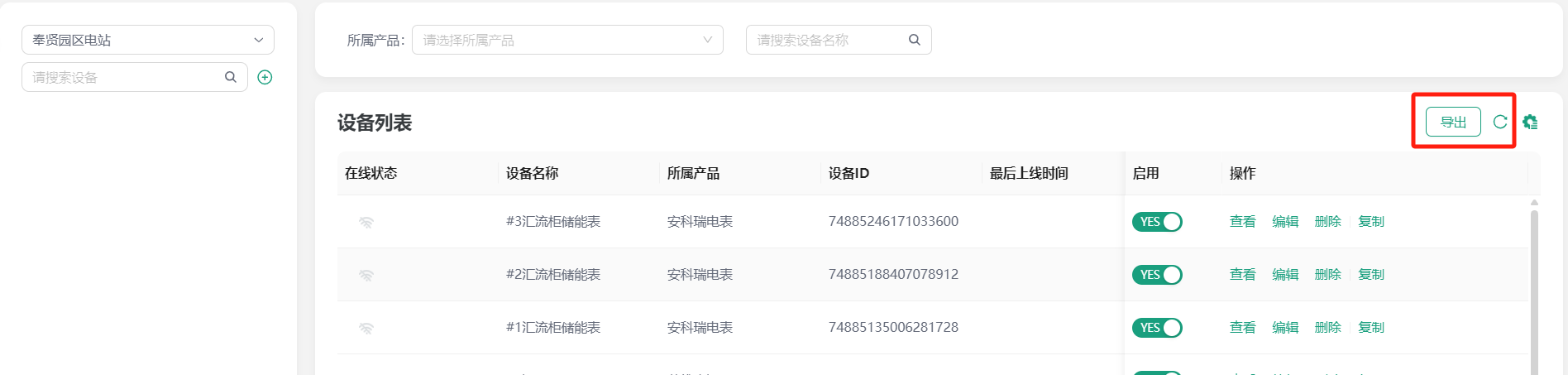
You can export the devices in the device list by clicking the "Export" button. The exported data fields are consistent with the device data list fields.
Device List Refresh
Click the "Refresh" button to refresh the current device list, which is convenient for dealing with some delay cache problems.