System Settings
The "System Settings" module allows management of the organizational structure and roles of the tenant to which the logged-in account belongs. It mainly includes the management of member accounts and roles in each organization within the tenant's organizational structure, supporting operations such as creating organizations/members, adding roles, and configuring role permissions.
Organization Members
Organization
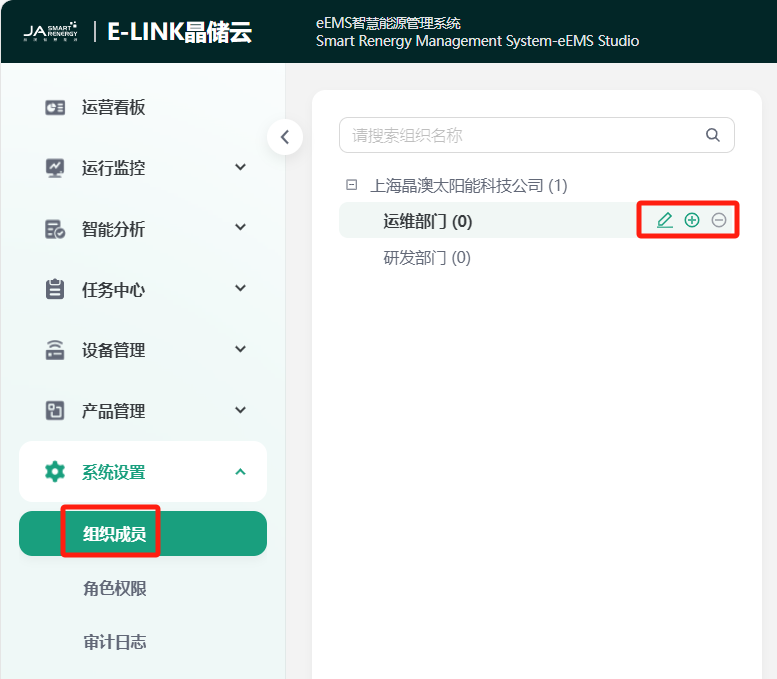
Before adding members, the organizational structure under the tenant needs to be maintained first.
Root Organization
Defaults to the tenant company entity, which is the top-level node of the organizational structure. You can adjust the organization name by clicking the  button on the right side of the root organization.
Sub-organization Add/Edit/Delete
Add: Select the root organization or a sub-organization, and click the
 button on the right to add a sub-organization to the selected organization.
Edit: Select an organization and click the
button on the right to adjust the organization name.Delete: Select an organization and click the
 button on the right to delete the organization. Note that deleting an organization requires that there are no members under the organization, otherwise the organization cannot be deleted.
Members
Add Member
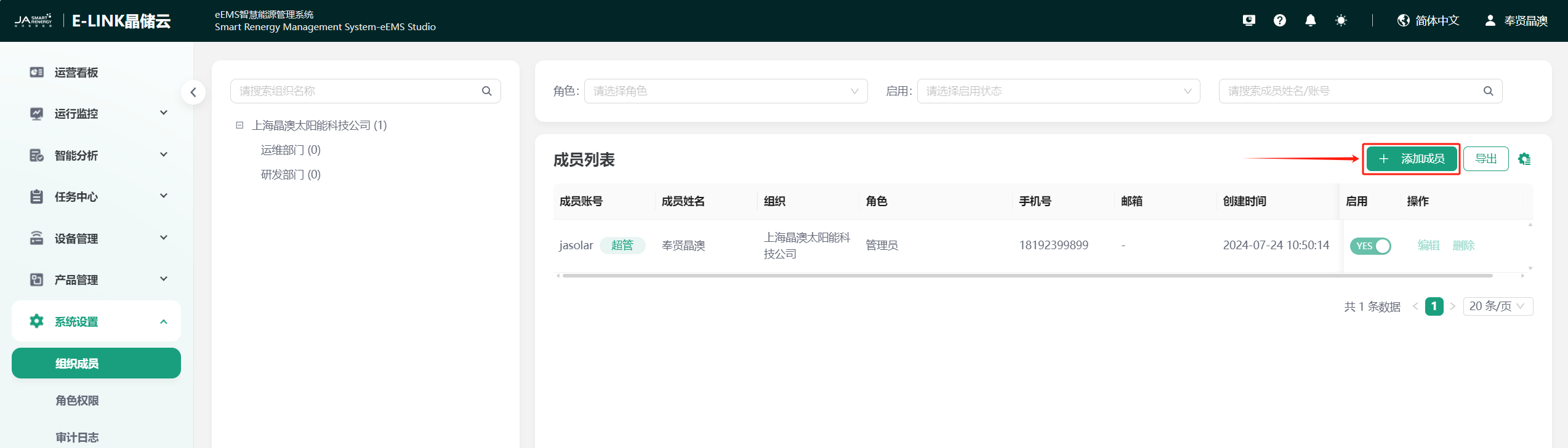
Click the "Add Member" button to enter the add member page. Fill in the basic information of the member and click the confirm button to complete the member addition operation, as shown in the figure:
| Parameter Name | Description |
|---|---|
| Member Account | Set member account, can enter English/numbers and special characters (-_.), and can only start with lowercase letters |
| Member Name | Set member name |
| Login Password | Set member login password, must be a combination of uppercase and lowercase letters + numbers + special characters (. ~ ! $ % & @ ## _-) |
| Confirm Password | Confirm password again |
| Mobile Number | Set member mobile number |
| Set member email (optional) | |
| Organization | Select the organization to which the member belongs |
| Role | Select the role to which the member belongs. Different roles correspond to different permissions for the member |
Member Operations
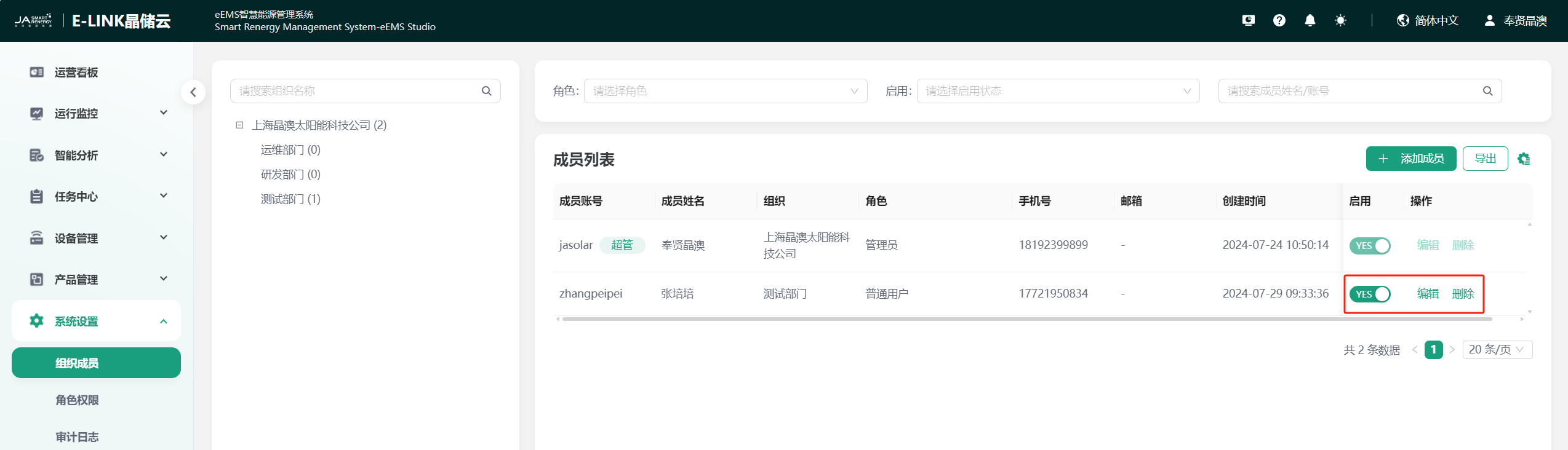
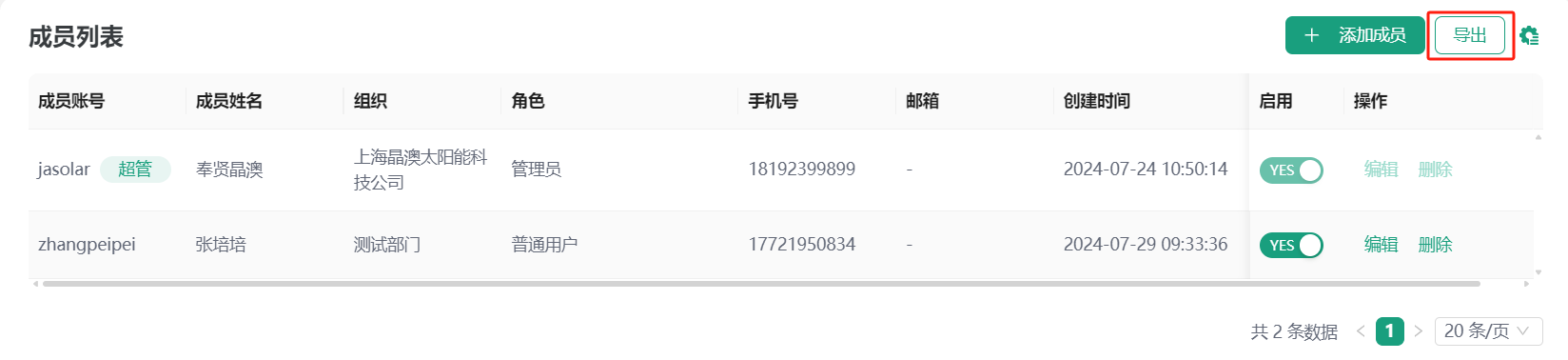
Member Edit: You can filter members by organization/role/member enable status or search. Click the "Edit" button in the operation column to edit and modify the account information of the member (note that super admin users cannot be edited).
Member Delete: You can filter members by organization/role/member enable status or search. Click the "Delete" button in the operation column to delete the account data of the member (note that super admin users cannot be deleted).
Member Enable/Disable: Enabled by default. You can filter members by organization/role/member enable status or search. Click the "Enable/Disable" button to disable the member. After disabling, the member cannot log in to the system with the account password (note that super admin users cannot be disabled).
Member List Export
You can export the members in the member list by clicking the "Export" button. The exported data fields are consistent with the member list fields.
Role Permissions
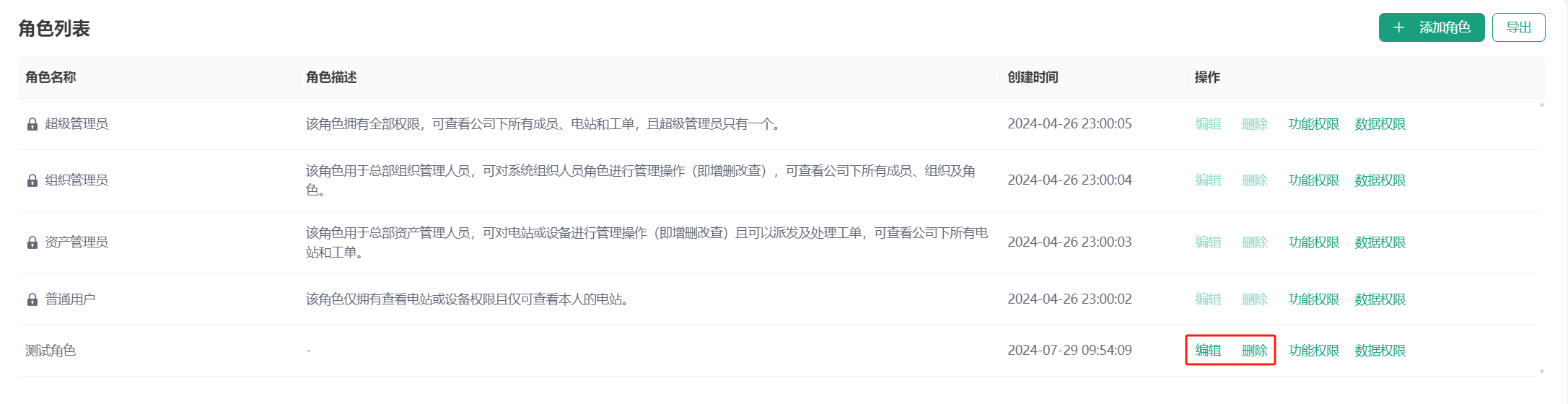
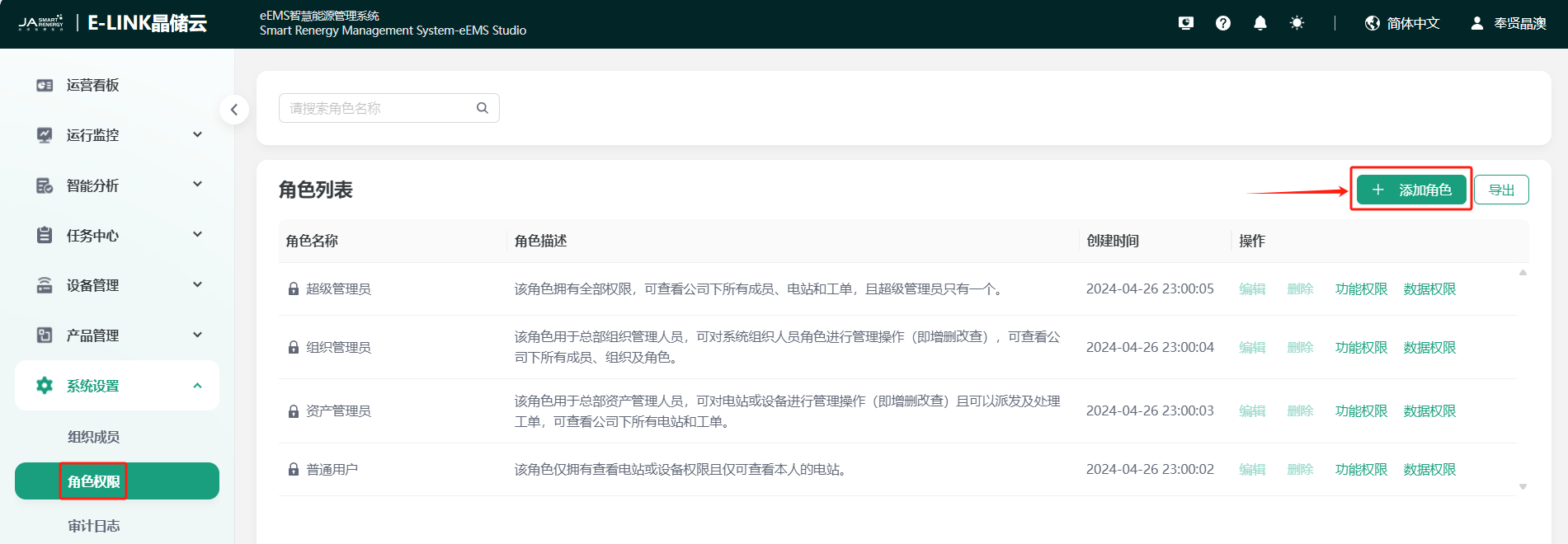
Account permissions are based on roles. By dividing different roles and assigning different functional and data permissions, and selecting the corresponding role when adding members, the distinction and isolation of member permissions are achieved. The system presets four common roles, and you can add new roles as needed.
Add Role
Select and click the "Add Role" button in the upper right corner of the role permission page. An add role window pops up on the side of the page. You can add the role name and role description in this window, as shown below:
Permission Configuration
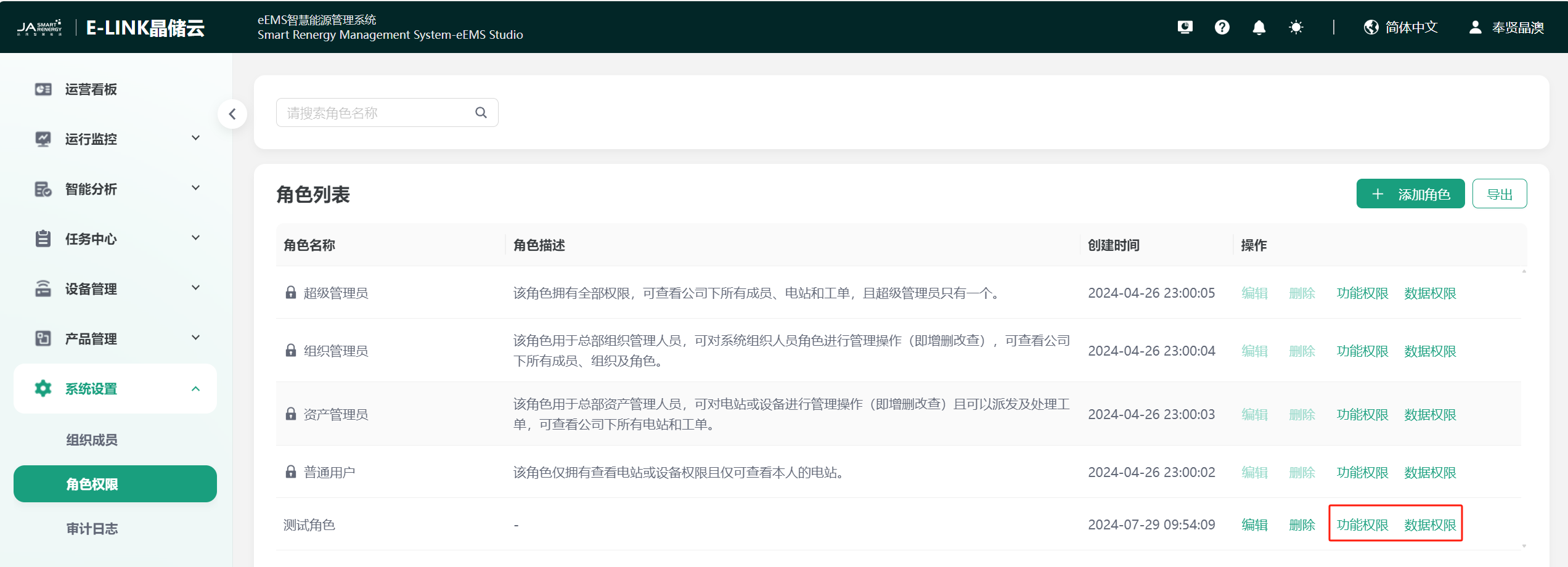
After the role is added, you can click Functional Permissions/Data Permissions in the corresponding role operation column to configure the permissions of the role, as shown below:
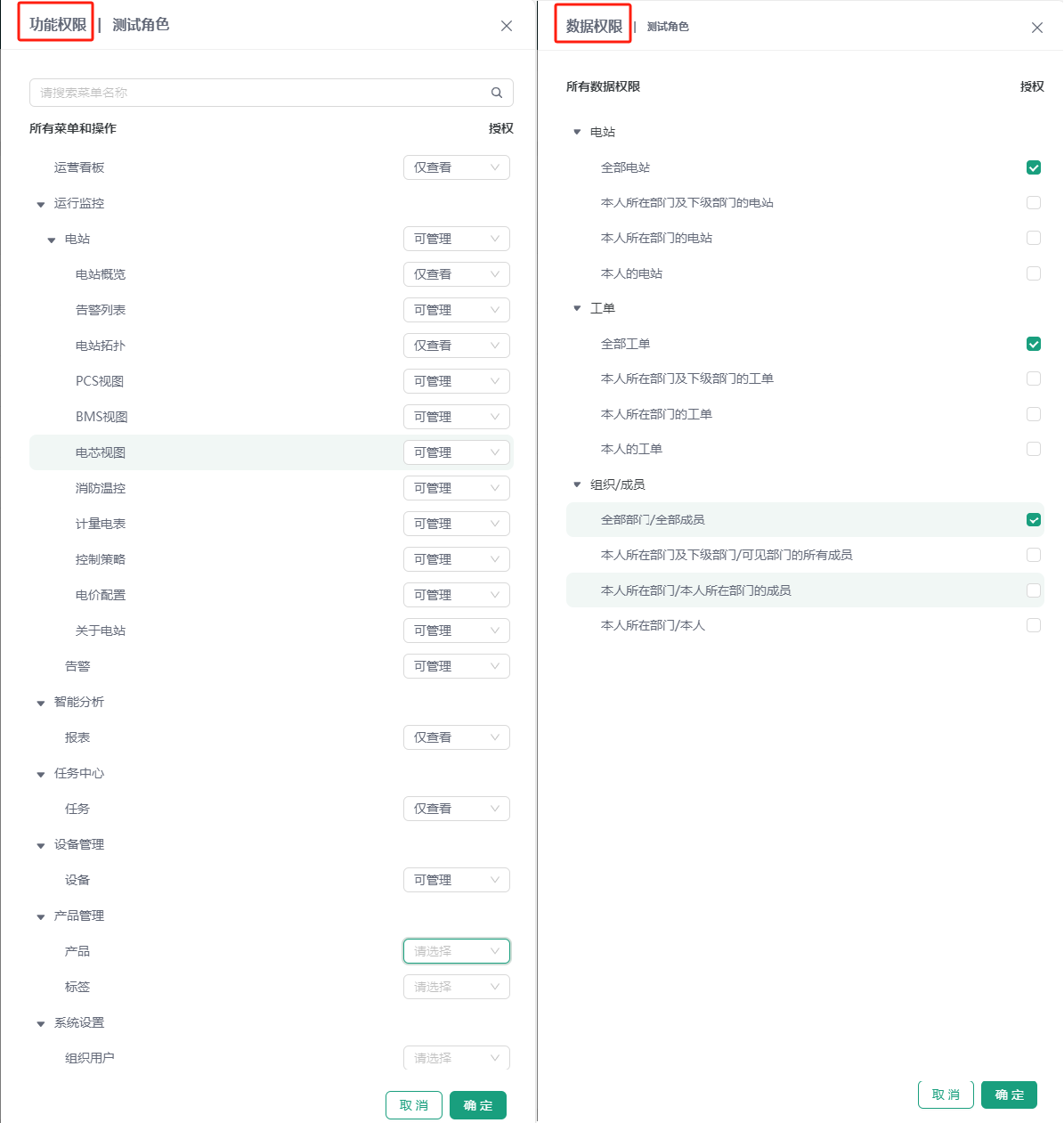
Functional Permissions: That is, system menu permissions. You can choose to configure different permissions for different menus, including No Permission/View Only/Manageable.
Data Permissions: That is, the data range that the user can view, including three types of data permissions: Station, Ticket, and Organization/Member.
Role Operations
Edit Role: You can filter roles by search. Click the "Edit" button in the operation column to edit and modify the role name/description (note that preset roles cannot be edited).
Delete Role: You can filter roles by search. Click the "Delete" button in the operation column to delete the role. When the role is bound to a user, please unbind it before deleting (note that preset roles cannot be deleted).